
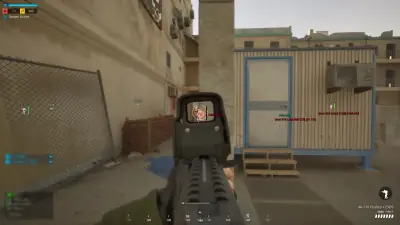
How to Increase FPS in Squad: Graphics Settings and Performance Tips
Experiencing low FPS in Squad? Learn how to assess your PC, adjust demanding graphics options, update drivers, and troubleshoot performance problems.
Squad combines large environments, detailed terrain, vehicles, infantry combat, and numerous players in the same match.
While this creates an engaging tactical experience, it can also put considerable demands on a gaming PC.
Low FPS, inconsistent frame times, and stuttering can make engagements difficult to follow. Fortunately, there are several areas worth checking before considering a hardware upgrade.
This guide explains how to assess your system and improve Squad performance through practical adjustments.
1. Check Your PC Hardware
Start by comparing your PC against the game's published system requirements.
Pay particular attention to:
- Processor performance.
- Graphics card capabilities.
- Available GPU memory.
- Installed RAM.
- Storage performance.
- Windows version.
Squad's Steam listing provides minimum and recommended hardware specifications. These are useful starting points, but actual performance can vary depending on the game version, map, settings, and background applications.
A PC that runs other multiplayer shooters smoothly may still struggle with certain Squad environments.
2. Monitor CPU and GPU Usage
Before changing graphics settings, determine which component is limiting performance.
Use an appropriate system monitoring tool to observe:
- CPU utilization.
- GPU utilization.
- GPU memory usage.
- System memory usage.
- Temperature levels.
- Frame time consistency.
If your GPU is consistently close to full utilization, demanding graphics settings may be contributing to the issue.
If CPU usage is unusually high, background applications or CPU limitations may be involved.
Monitoring helps identify the actual bottleneck instead of making random adjustments.
3. Adjust Demanding Graphics Settings
Some graphics options have a greater performance impact than others.
Squad's official Update 9.0 graphics guide recommended using the built-in benchmark, adjusting upscaler resolution, and lowering demanding options such as Global Illumination Quality and Shadows when necessary.
These recommendations provide a starting point, but settings should be tested against your current game version and hardware.
Consider the following approach:
Start With a Benchmark
Use the game's available benchmark functionality to establish a baseline.
Record your average FPS and pay attention to frame time stability.
Adjust Global Illumination
Global illumination contributes to how lighting is represented throughout the environment.
Lower settings may reduce GPU workload, depending on the game version and hardware.
Adjust Shadows
Shadow quality can be demanding in large environments.
Test lower shadow settings and compare the visual result with the performance improvement.
Review Upscaling
If your hardware and game version support upscaling, compare the available options.
Different upscaling modes can provide different balances between image quality and performance.
4. Keep Your GPU Drivers Updated
Outdated graphics drivers can contribute to performance problems or rendering issues.
Visit the official website of your GPU manufacturer and check for an appropriate driver update.
After installation, restart your system and test the game again.
Avoid third-party driver download sites.
5. Close Unnecessary Background Applications
Background applications can consume CPU, memory, and GPU resources.
Before launching Squad, review programs that are running unnecessarily.
Common examples include:
- Unused video editing applications.
- Large file downloads.
- Multiple browser windows.
- Unnecessary background launchers.
- Other resource-intensive applications.
Do not disable essential Windows services or security software simply to increase FPS.
6. Check Temperatures and Power Behavior
High component temperatures can affect sustained performance.
Monitor CPU and GPU temperatures during gameplay.
Also check that your graphics card is using an appropriate power profile and that your PC's cooling system is working correctly.
If the system becomes noticeably slower after several minutes of gameplay, thermal behavior deserves attention.
7. Recheck Performance After Game Updates
Performance can change following major game updates.
Squad's Update 10.6 release notes, published on October 7, 2026, specifically mentioned significant performance improvements across the game, including changes to maps, models, and the interface.
This is a useful reminder to benchmark again after major updates rather than assuming older settings remain optimal.
8. Avoid Blindly Copying Graphics Configurations
A graphics preset that works well for another player may not suit your system.
Hardware, display resolution, game version, and personal visual preferences all affect the result.
Make one or two changes at a time and compare performance.
This makes it easier to identify which adjustment actually helps.
Squad FPS Troubleshooting Checklist
| Performance problem | What to check |
|---|---|
| Consistently low FPS | CPU and GPU limitations |
| Sudden FPS drops | Temperature and resource usage |
| Stuttering | Memory usage and background applications |
| Visual problems | Graphics driver and game files |
| Performance changed after update | Rebenchmark and review current settings |
| Poor performance on specific maps | Map-specific graphics workload |
Final Thoughts
Improving Squad performance is usually a process of identifying bottlenecks and testing appropriate settings.
Start with your PC hardware, monitor performance, update drivers, and adjust demanding graphics options carefully.
Avoid making several unrelated system changes at once.
For the most reliable results, use the latest game version and test your settings against the maps and situations where you experience performance problems.
You can also consult the official Squad Steam page for current game information and system requirements.